Apple has released a new update for the iPhone that now allows you to customise your home screen. They’ve finally caught up to what other mobile companies have been doing for years! Since the update the whole process of personalising the home screen has gone viral, so many people have uploaded videos and pictures of their phones displaying the wildest designs. I recently customised mine and posted a screen recording of it, I got messages asking me how I did it so I thought I would write a blog post explaining the steps.
Widgetsmith is the most popular app people are using, this is what will allow you to create the fun widgets for your pages. Once you have downloaded the app you can choose from 3 size widgets; a small, medium and large, these can be used in various ways. I used most of mine for images to make my colour co-ordinated pages look aesthetic. Tip: for the best selection of images use Pinterest, they have so many great ones it’s crazy!
The first thing I would recommend doing is organising your apps, I found it was a good opportunity to clean out my phone since I had a tonne that I wasn’t using. Once that’s done you can figure out how many pages you want for your apps and then the fun part; creating widgets!
Widgetsmith is super simple to use, you first select the size you want and then pick the type such as; time, date, image, calendar, reminders, weather, step count and others. Play around with the sizes and number of widgets per page until you are happy with it. I decided to arrange my apps by colour per page and then I added image widgets to complement the colours.
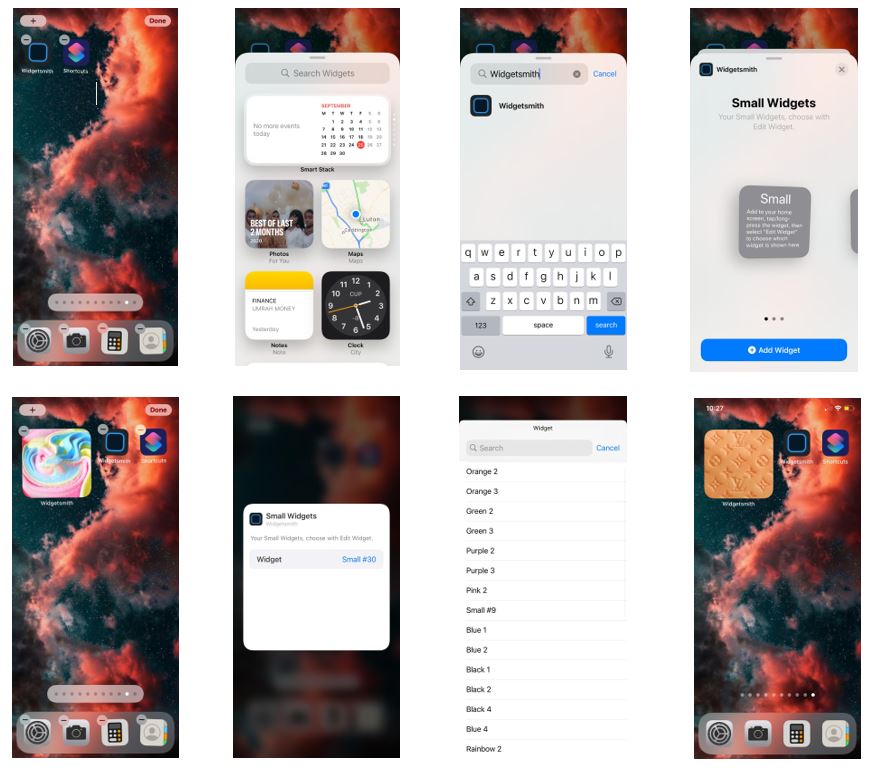
To add the widgets to your page, you hold down on an app or an empty part of the screen, this should make the apps hover and give you a plus sign on the top left corner. When you click the plus sign, it will reveal a window with apple widgets and a search box, in there type in Widgetsmith. This will then give you the option to add a widget from the small, medium or large collection. After you select which size you need it will appear on the screen, you then click on the widget and pick from the ones you have created. If this is confusing check out the steps below!
Some people have gone as far as changing the looks of the apps, this is done by creating a shortcut for the app and adding in an image. I chose not to do that since it takes longer to open and I personally prefer the original look of the apps. I’m pleased with how mine turned out and love how pretty it looks! We spend so much time staring at our phones why not customise it, so it makes you feel good when you look at it.
Let me know in the comments if you have updated your phone and how you designed it!
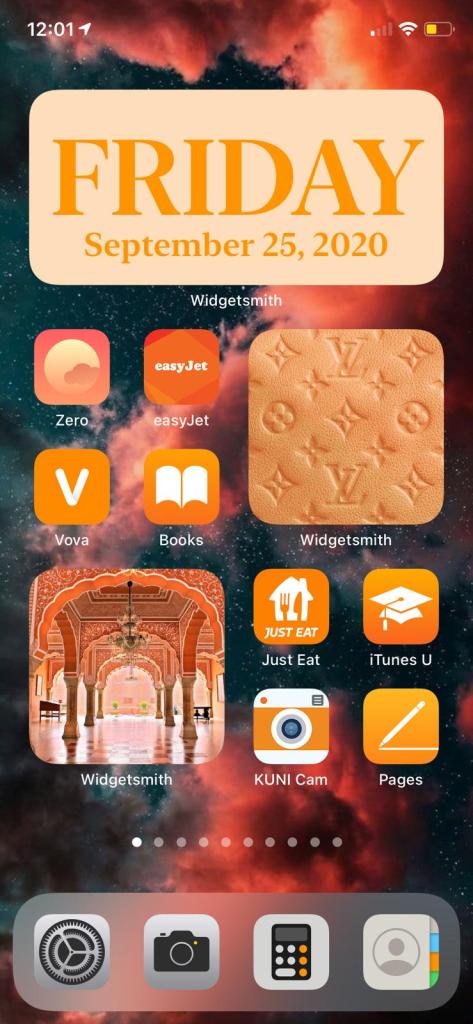

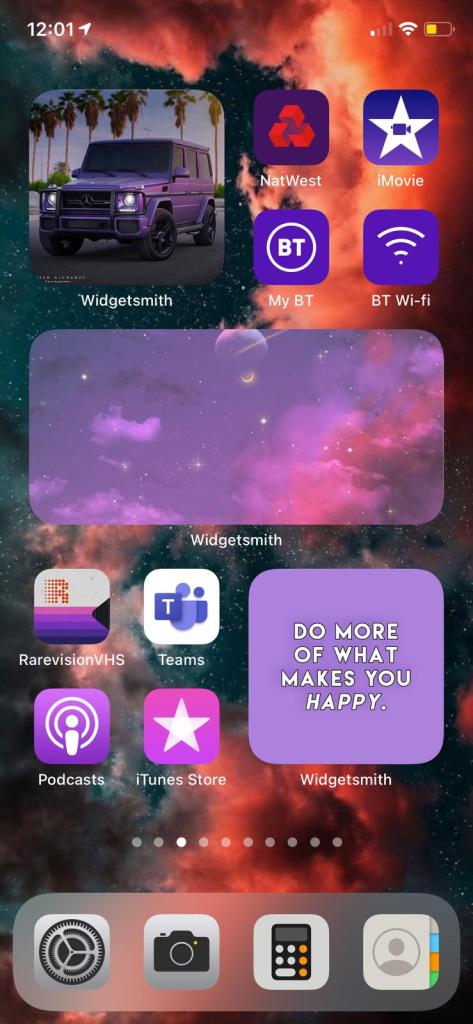
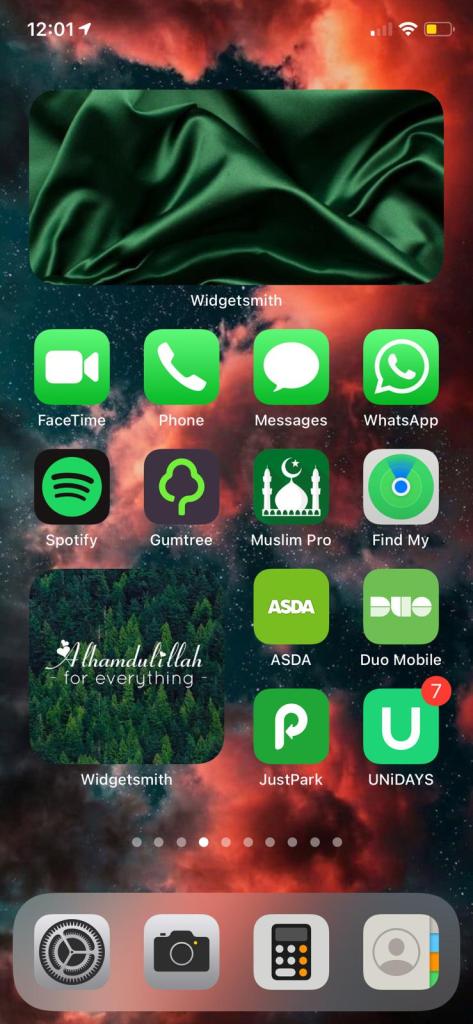
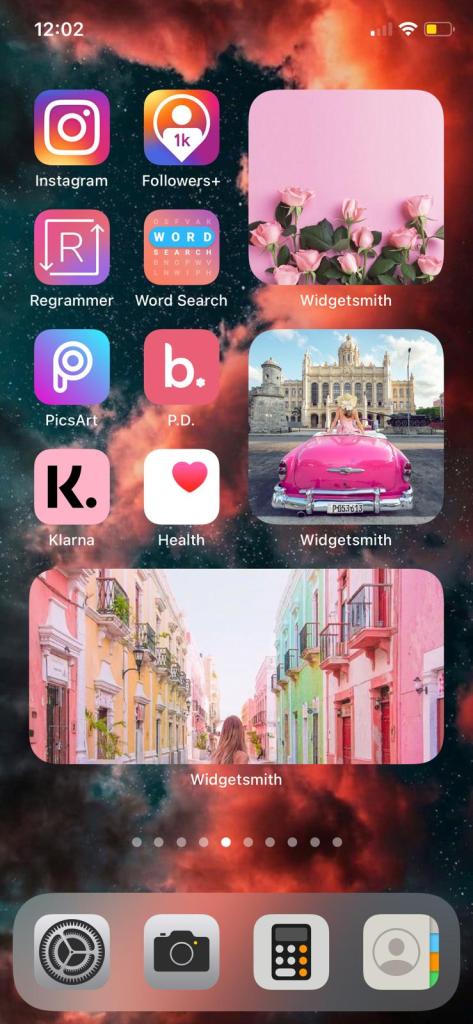
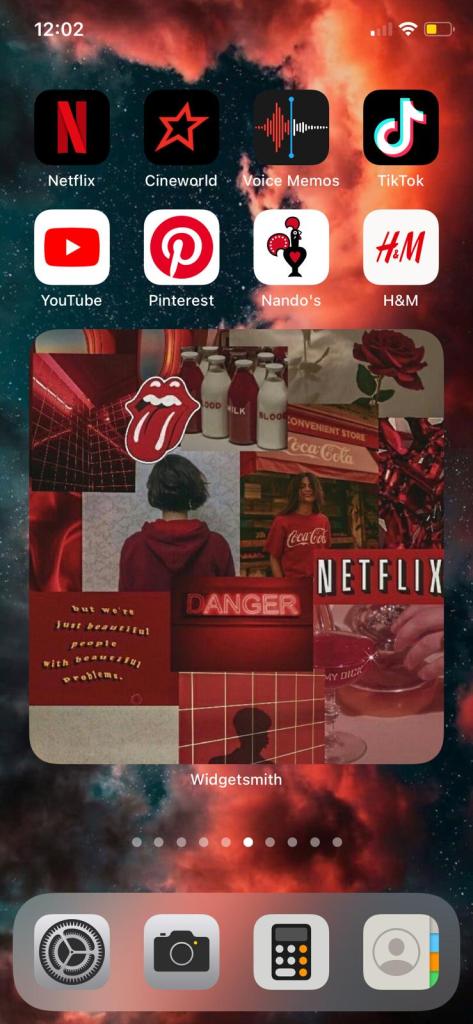
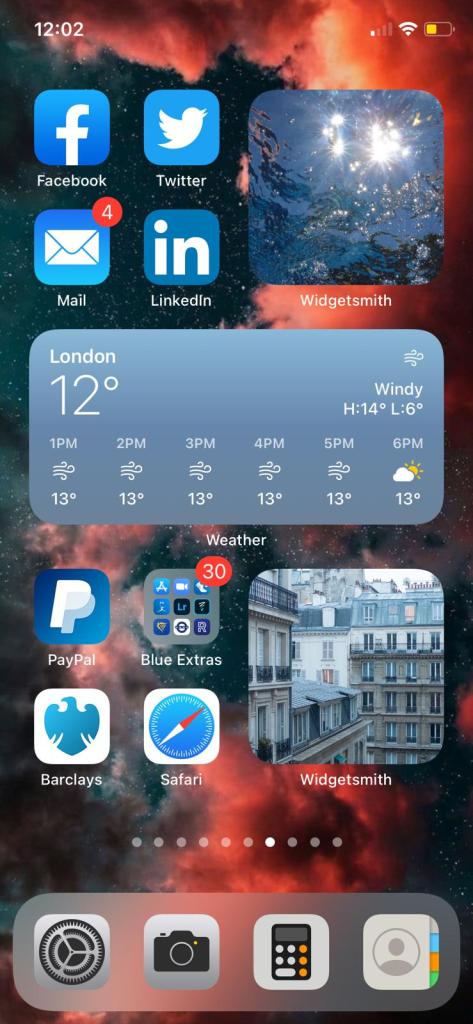
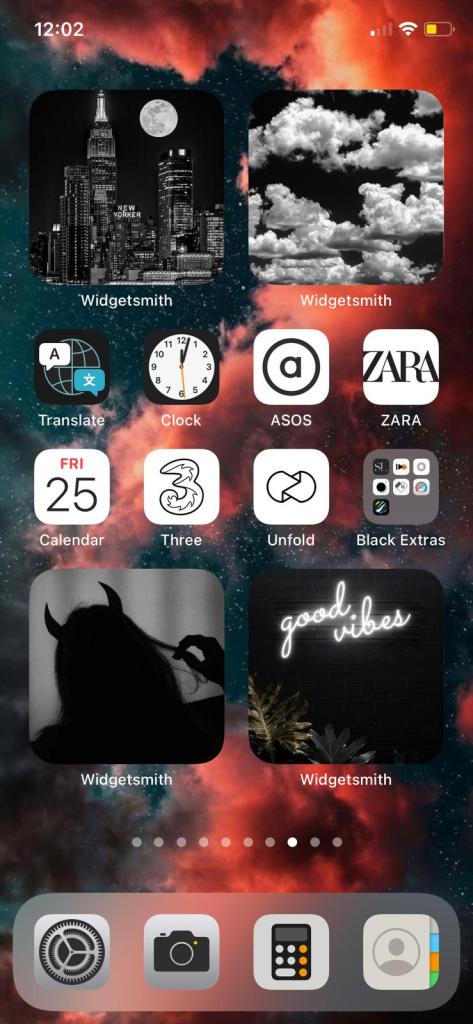

 And Everything Else
Wow, the most aesthetically pleasing one I have come across!
LikeLiked by 1 person
Wow this is very cool, I don’t have time or patience myself to do this but I can tell you put very much effort.
Thank you and good day
LikeLike
Hello neepz bedel here from Turkey, this is very amazing and pleasing to see
LikeLike
Wow best one by far!
LikeLike
Love this
LikeLiked by 1 person